...
Android App  ·  Industrial IoT  ·  v1.0

Gateway Commissioning App

Connect.
Commission.
Configure.

The AdiNexus Gateway Commissioning App

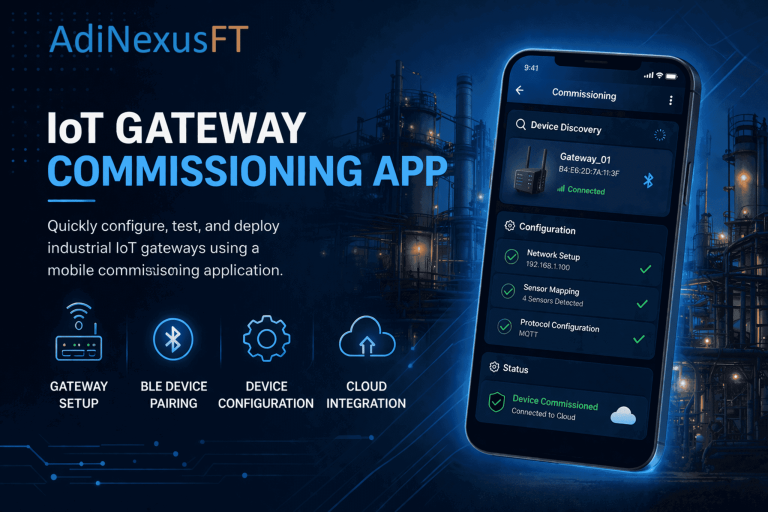
AdiNexusFT puts complete wireless control of your AdiNexus industrial IoT gateways in the palm of your hand. Configure network settings, run diagnostics, update firmware, and retrieve logs — entirely over Bluetooth, entirely from your Android phone.

mobile view AdiNexusFT
10m
BLE Wireless Range
5
Network Interfaces
0
Cables Required
——–

Everything you need.
Nothing you don't.

AdiNexusFT is purpose-built for AdiNexus gateways. Every feature maps to what field engineers need on the factory floor — fast wireless connectivity, reliable configuration, and instant visibility into gateway health.

Wireless BLE Connection

Connect to any AdiNexus gateway within 10 metres. The app scans, identifies, and verifies your access permissions with the cloud — before the connection is established.

Network Commissioning

Configure Wi-Fi, Ethernet RMII (LAN8720), Ethernet SPI (W5500), and GSM/4G cellular — all with DHCP and Static IP support on every interface. One screen per interface, zero ambiguity.

MQTT Broker Configuration

Full MQTT setup including protocol, broker address, port, SSL/TLS, certificates, credentials, keep-alive, and control/publish/alarm topics. For third-party gateway deployments.

Real-Time Gateway Diagnostic

Live health snapshot of every subsystem: WiFi signal, Ethernet link, cellular status, MQTT connection, SD card usage, firmware version, uptime, memory — all at a glance.

OTA Firmware Updates

Push firmware wirelessly over BLE. App reads gateway model code, downloads the right binary from AdiInfi servers, and transfers it in chunks. No USB cable. No physical access.

Gateway Log Retrieval

Retrieve any SD card log file by offset over BLE. View full log content inline, with copy-to-clipboard for instant sharing with your support team. Format: Level, Timestamp, Module, Message.

Full Configuration Transfer

Send a complete gateway configuration file in one operation — from your phone storage or directly from the AdiInfi cloud. Chunked BLE transfer with real-time progress bar.

Barcode Scanner

Scan the printed barcode on any AdiNexus gateway to identify it by UID instantly. Retrieve gateway info from the cloud without needing a BLE connection. Ideal for large multi-gateway sites.

——–

From field to cloud in minutes.

A complete end-to-end commissioning workflow that any field engineer can follow — from first launch to verified cloud connectivity.

1

Setup

Install & Log In

Install AdiNexusFT on your Android phone and log in with your Client ID, Username, and Password provided by your AdiInfi-authorised administrator. The app connects to the AdiInfi cloud to verify your credentials.

2

Gateway

Activate BLE Commissioning Mode

Press and hold the commissioning button on the AdiNexus gateway for 10–20 seconds until the LED alternates red and blue. The gateway is now advertising over Bluetooth and ready to accept a connection. BLE mode remains until user disconnects gateway from application.

3

Connect

Scan & Connect Securely

Open the Bluetooth scanner. Your gateway appears as AdiNexus-XXXX. Tap Connect. The app verifies your access permissions with the AdiInfi cloud before the BLE connection is established — unauthorised users are blocked automatically.

4

Commission

Configure Network Interfaces

Configure WiFi, Ethernet, GSM/4G, and MQTT settings from the Commission menu in the side drawer. Each interface has its own dedicated screen. Tap Send Configuration — the gateway applies settings and restarts automatically.

5

Verify

Run Diagnostic & Confirm Cloud Connection

Open Gateway Diagnostic to confirm all interfaces show the expected status. Verify MQTT shows Connected and Running. The gateway is commissioned and communicating with the cloud. BLE can be disconnected.

——–

Every connection type. One app.

AdiNexusFT supports all network interfaces available across the AdiNexus hardware family. DHCP and Static IP modes are supported on all interfaces.

Interface Hardware Availability IP Mode Notes
Wi-Fi (2.4 GHz) All AdiNexus variants DHCP / Static IP Supports None, WPA2-Personal, WPA2/WPA3, WPA3-Personal security
Ethernet RMII (LAN8720) All AdiNexus variants DHCP / Static IP Live DHCP address display when connected
Ethernet SPI (W5500) v2 ELITE only DHCP / Static IP "Not Available" banner shown on unsupported models
GSM / 4G (LTE) v1 & v2 PLUS DHCP / Static IP APN dropdown, SIM PIN, carrier-assigned IP recommended
MQTT (Cloud) Third-party gateways N/A SSL/TLS, certificates, topics, keep-alive configurable
——–

Built on a proven three-layer architecture.

AdiNexusFT communicates with the AdiNexus gateway over BLE and with the AdiInfi cloud for authentication, access control, and OTA delivery.

AdiNexus
AdiCloudX
AdiNexusFT

System Architecture

Live Industrial IoT Commissioning  ·  Built by AdiInfi  ·  Made in India 🇮🇳

Android commissioning app — configure, diagnose & update AdiNexus gateways wirelessly via Bluetooth.
BLE wireless connection (In Bluetooth Range)
WiFi / Dual Ethernet / 4G Cellular
OTA firmware update over BLE
Real-time gateway diagnostics
Log retrieval & barcode scanner
Android App
9:41 AdiNexusFT AdiNexus-4F2A · Connected Gateway UID ADI-GW-2024-001 NETWORK CONFIG WiFi ✓ Active Ethernet DHCP 4G/GSM LTE Ready MQTT Connected Send Configuration
BLE
Config
Firmware
Logs
Diag
Auth
Industrial IoT gateway — bridges field devices, PLCs & sensors to AdiCloudX securely over MQTT.
Dual Core - 240 MHz · WiFi / DUAL ETH / 4G/GSM
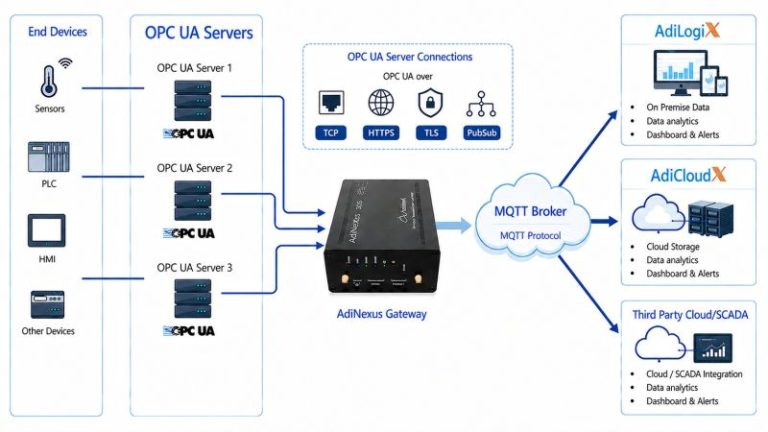
Modbus, BACnet, OPC UA, RS485
BLE commissioning mode
OTA flash, SD logging
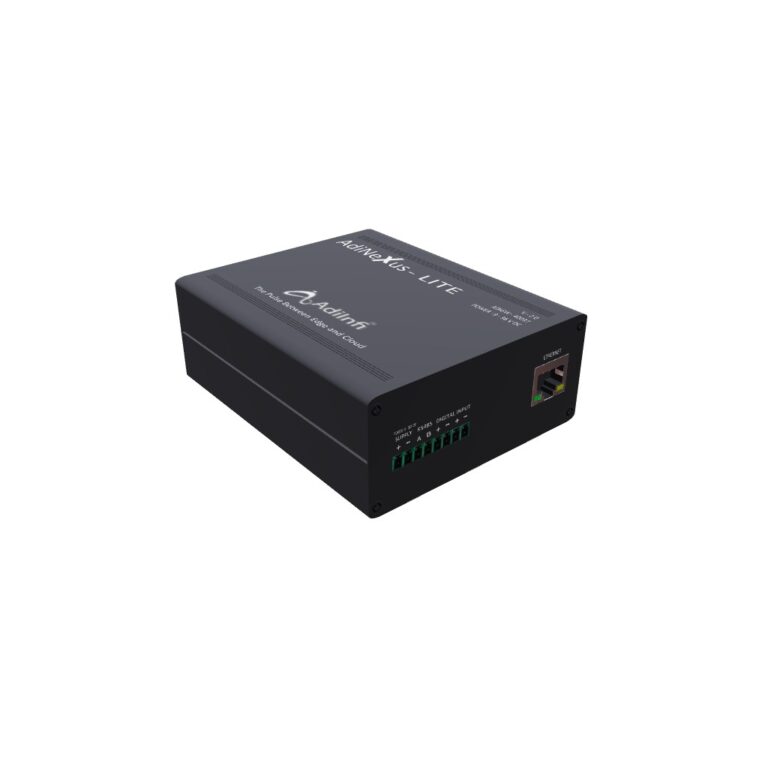
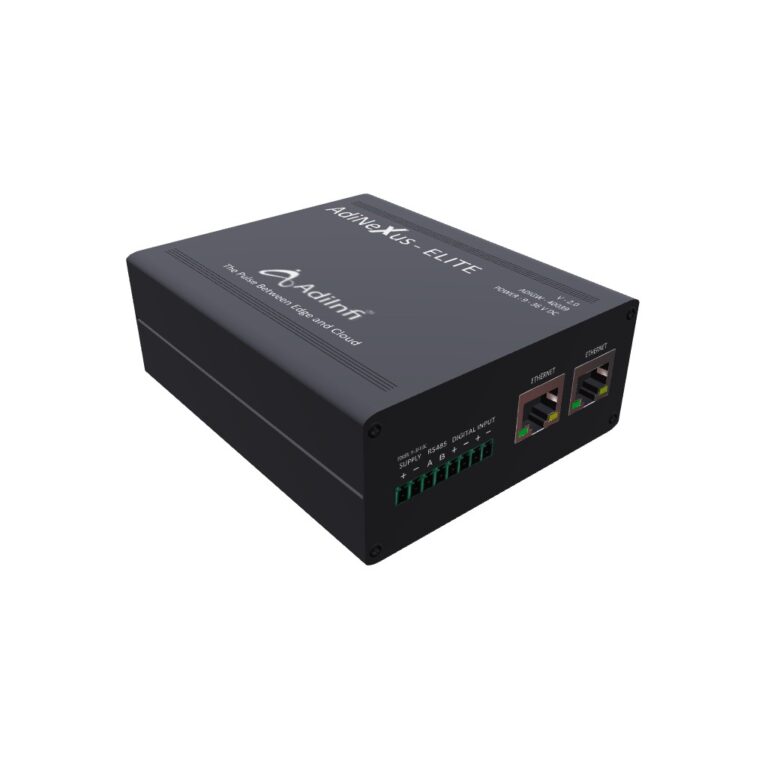
V2.0 PLUS / ELITE / LITE
AdiNexus V2.0 Hardware
AdiNexus V2.0 PLUS PWR NET BLE WiFi 2.4 GHz Connected ETH LAN8720 DHCP 4G/GSM LTE Cat-4 Ready BLE 4.2+ Active MQTT · Connected & Running · Broker: AdiCloudX SD RS485 / Modbus ETH / PWR
MQTT
HTTPS
Real-time
Alarms
Data
OTA
Industrial IoT Cloud SCADA — real-time dashboards, alarms, historian & analytics accessible from any device.
Live dashboards & alarms
Historian & analytics
No-code visual config
21-CFR Part 11 compliant
Mobile · Tablet · Desktop · Web
Access from any device
AdiCloudX 72% Live Connected
MOBILE
AdiCloudX Dashboard 85% No Alarms Temp 42°C LIVE
TABLET
AdiCloudX · Plant Dashboard Temp 42.1°C Uptime 99.8%
DESKTOP
BLE Wireless · Secure · Zero Cables
5 Network Interfaces · OTA Updates
Cloud SCADA · Any Device · Real-Time
AdiInfi · Made in India
——–

Keep gateways healthy. From anywhere on site.

Beyond commissioning, AdiNexusFT provides a complete maintenance and monitoring toolkit for keeping deployed gateways running at peak performance.

Monitoring

Gateway Diagnostic

Real-time health data across all subsystems — system uptime, memory health, MQTT status, network IPs, WiFi signal, SD card capacity — in a single refreshable screen.

Troubleshooting
Gateway Logs

Retrieve historical or current log files by offset from the gateway SD card. View full log content inline. Copy and share with your support team for remote diagnosis in seconds.

Updates

OTA Firmware Update

Update gateway firmware wirelessly over BLE. The app handles model detection, binary download from AdiInfi servers, and chunked transfer automatically. No USB. No downtime.

Control
Gateway Restart

Send a controlled restart command to the gateway. A 3-minute cooldown lock prevents accidental repeated execution. Confirmation dialog required before any restart is sent.

Storage
SD Card Format

Format the gateway SD card to clear log files when storage is full or corrupted. The card is re-initialised after formatting. Irreversible — confirmation required before proceeding.

Recovery
Factory Reset (2 Levels)

Level 1 resets network settings only — preserving PLC and Modbus configuration. Level 2 performs a complete factory reset for full redeployment. Each level has a dedicated confirmation flow.

——–

What you need to get started.

AdiNexusFT requires only an Android phone and your AdiInfi credentials. No additional hardware, no network infrastructure, no laptops.

📱

Platform
Android 6.0 (API 23) or higher — smartphone or tablet
Bluetooth
Bluetooth Low Energy (BLE) must be enabled on your device

📍

Location Permission
Required by Android OS for BLE scanning — grant on first launch

🌐

Internet Connection
Required for login and OTA firmware updates only. Not needed during BLE commissioning.

🔑

Credentials
Client ID, Username & Password — provided by your AdiInfi-authorised dealer or administrator

📦

Distribution
Private APK — supplied directly by AdiInfi-authorised dealers and system integrators
——–

What you need to get started.

spanner
Field Engineers & System Integrators

Install and commission AdiNexus gateways on site. Configure network settings, push firmware, and verify cloud connectivity — all from one app, without any additional equipment. First-time commissioning to live operation in minutes.

factory
Plant Operators & Technical Staff

Monitor gateway health, retrieve diagnostic logs, and perform routine maintenance. Restart gateways, check connectivity, and escalate issues faster with built-in log export and clipboard sharing — without needing IT support on site.

 
server
IoT Project Managers

Standardise deployments across multiple sites using Full Configuration Transfer. Push consistent, pre-approved gateway configurations from the AdiInfi cloud portal directly to any gateway in the field — in a single operation.

——–

Quick Reference Checklist.

Use this checklist when commissioning an AdiNexus gateway for the first time. Every item maps to a specific step in AdiNexusFT.

1

Install AdiNexusFT on your Android phone

2

Obtain credentials (Client ID, Username, Password) from your administrator

3

Launch the app and log in — session persists for future launches

4

Power on the AdiNexus gateway

5

Hold commissioning button 10–20 seconds until LED alternates red/blue

6

Open Side Drawer → Gateway Connect → Bluetooth

7

Scan and tap Connect on AdiNexus-XXXX in the device list

8

Confirm Access Granted — verify Gateway UID on Home screen

9

Configure WiFi, Ethernet, GSM/4G as applicable for your site

10

Configure MQTT broker settings (if using third-party broker)

11

Run Gateway Diagnostic — verify all interfaces show expected status

12

Confirm MQTT shows Connected and Running — gateway is live ✓

Looking for more information, contact us!

Related Products

Commissioning App

Iot Gateway Commissioning App

Configure and manage IoT gateways easily with AdiNexusFT commissioning app. Set up networks, perform diagnostics, update firmware, and monitor devices securely via Bluetooth from your Android device.

Read More »
Scroll to Top

Let's get in touch

Generic selectors
Exact matches only
Search in title
Search in content
Post Type Selectors
Seraphinite AcceleratorOptimized by Seraphinite Accelerator
Turns on site high speed to be attractive for people and search engines.